
The symptom
You export your Google Photos library using Takeout. You open the folder and everything looks fine, the photos are there, the folders have names. But then you import them into any photo app and your entire timeline is scrambled. Photos from 2018 show up in 2022. A trip to Italy is dated last Tuesday.
This hits almost everyone who leaves Google Photos, and it's confusing because the photos look fine when you open them individually.
What's actually happening
When Google stores your photos, it manages the metadata (dates, GPS, descriptions) in its own database. When you export via Takeout, Google writes that metadata into small .json files alongside each image.
The problem is that many of your actual image files have their EXIF date set to the upload date rather than the capture date. If you uploaded a batch of old photos in 2022, those images now say "2022" in their EXIF data, even though you took them in 2018.
The correct date is in the JSON file. But most photo apps don't read those JSON files: they read the EXIF data embedded in the image.
Here's what a Takeout folder typically looks like:
Photos from 2020/
  IMG_4521.jpg
  IMG_4521.jpg.json          ← has the real date
  IMG_4522.HEIC
  IMG_4522.HEIC.json         ← has the real date
  metadata.json
The JSON files contain something like:
{
  "photoTakenTime": {
    "timestamp": "1592611200"
  },
  "geoData": {
    "latitude": 45.523,
    "longitude": -122.676
  }
}
That timestamp is the real capture date. But it's not in the image file itself.
How Pluto Photos fixes it
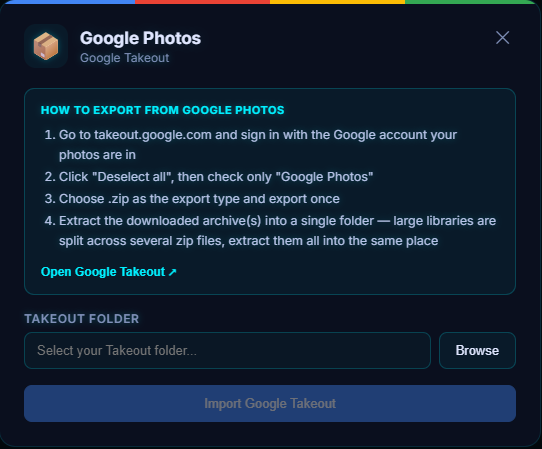
Pluto Photos has a dedicated Google Takeout importer that reads those JSON sidecars, extracts the correct timestamps and GPS coordinates, and applies them during import. Your photos end up on the right dates in your timeline.
It also handles the annoying edge cases:
- Filenames truncated by Google (the JSON name doesn't always match the image name exactly)
- Duplicate photos that appear in both date folders and album folders
- The timezone offsets that Google sometimes gets wrong
Still wrong?
If only some dates are wrong, or locations are missing, the symptom table matches each case to its cause. For free scripts, see the Takeout Helper alternatives.
Why this is worth automating rather than patching by hand
The fix is conceptually simple, read each JSON sidecar, write its timestamp back onto the matching photo, which is exactly why it's tempting to script yourself with a command-line EXIF tool. In practice that script has to solve the same matching problem Pluto Photos' importer does: filenames Google truncated so the sidecar's name no longer matches the photo's, duplicate photos sitting in both a date folder and an album folder, and timezone offsets that are sometimes wrong in the sidecar itself. Getting all of that right, then running it across tens of thousands of files without a mismatch silently mis-dating a batch, is most of an evening even before you've fixed a single photo.
Download Pluto Photos and run the Google Takeout organizer instead. The Takeout importer is part of the Pro tier, and the free 30-day Pro trial lets you import one album folder to confirm the dates come through correctly before pointing it at the full export.