
Why a raw Takeout export doesn't work as a photo library
If you've used Google Takeout to export your photos, you already know the .zip files aren't something you can just open and browse:
- Photos are split across "Photos from 2018", "Photos from 2019" folders, with no unified timeline
- Album folders duplicate photos that already exist in the year folders
- Every image has a matching
.jsonfile sitting next to it that holds the real capture date and GPS location, the image file itself usually doesn't - The image's own EXIF date is often the upload date, not the day the photo was actually taken
- Long filenames get truncated by Google, which can leave two different photos looking like they share a sidecar
Import this straight into a photo app that only reads EXIF, and your entire timeline comes out wrong, most photos land on whatever day you happened to unzip the export.
Organizing a Takeout export means one specific thing: getting the date and GPS data out of the JSON sidecars and attached back to the photo, before anything else about your library (duplicates, albums, tags) can make sense.
How to import a Takeout export correctly
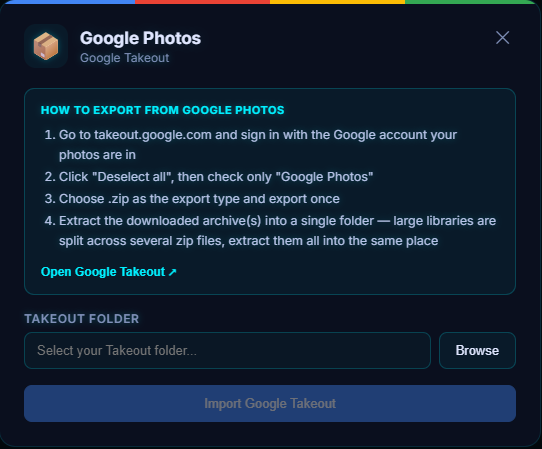
Pluto Photos has a Google Takeout importer built in that does this for you as a single step. Here's the exact process:
- Go to takeout.google.com and request an export of just Google Photos (deselect everything else to keep the download smaller).
- Once Google emails you the download links, download all the .zip parts and extract every one of them into a single folder. Don't extract them to separate folders: the importer needs to see the whole export at once to match photos to their sidecars.
- Open Pluto Photos, click Cloud Import in the toolbar, and select the Google Takeout tab.
- Browse to the folder you extracted everything into, and start the import.
- Let it run. On a large export (tens of thousands of photos) this can take a while. It's reading a JSON file for nearly every photo.
That's the whole process. No scripting, no command line, no manually matching filenames.
What the import fixes automatically
- Real capture dates. Every photo's
.jsonsidecar is read to pull the actual date it was taken, not the date it was uploaded or unzipped. - GPS coordinates, so Map View shows photos where they were actually taken.
- All six of Google's sidecar naming patterns: including the standard
photo.jpg.supplemental-metadata.jsonform, the olderphoto.jpg.jsonform, filenames Google truncated to fit its length limit, and edited copies (photo-edited.jpg, or a localized equivalent like-bearbeitetor-modifié) that share a sidecar with the original rather than having their own. - A safe fallback. If a photo genuinely has no sidecar Pluto Photos can match with confidence, it falls back to the photo's own EXIF date instead of guessing: you'll never end up with two unrelated photos silently sharing one date.
- Favorites → star ratings. Anything you starred in Google Photos comes in pre-rated.
End result: your library shows up dated correctly and with GPS pins on the map, instead of collapsing onto the day you unzipped the export. It's worth spot-checking a few random photos across different years after importing, the same as you would after any library migration.
Try Pluto Photos free, the Takeout importer is part of the Pro tier ($29 one-time, not a subscription).
After importing: clean up the duplicates
Takeout exports are full of redundant copies: burst shots, edited-and-original pairs, and the same photo appearing once in a year folder and again in an album folder. Once the import finishes, run Pluto Photos' duplicate finder over the library; a perceptual-hash scan typically reclaims 5–15% of the disk space by catching near-identical copies that a simple filename check would miss.
FAQ
Do I need to unzip every part myself? Yes: extract every .zip into one shared folder before starting the import, so the importer can see all your photos and sidecars together in one pass.
My export came as 15 separate .zip files. Does that matter? No, as long as you extract all of them into the same folder first. Google splits large exports into multiple zips purely for download size; the folder structure inside each one is meant to be merged back together.
What happens to videos? The same JSON sidecar process applies: Takeout writes a sidecar for videos too, and Pluto Photos reads it the same way it does for photos.
Will this re-upload my photos anywhere? No. Everything runs locally on your machine; nothing is sent anywhere during import.